
📶 Wi-Fi Setup & App Connection — Gravity ProUpdated 3 months ago
Overview
Wi-Fi and app connectivity are available exclusively on the Reencle Gravity Pro. The standard Gravity and Prime models do not support app connection.
You can use the Reencle app with any mobile carrier, as long as your phone and unit are connected to a 2.4GHz Wi-Fi network (5GHz is not supported) or a wireless router.
1️⃣ App Installation
Search for "Reencle Global" in your mobile app store and install it.

⚠️ Download "Reencle Global" — not "Reencle" ❌. The "Reencle" app is for South Korea customers only; international customers must use "Reencle Global."
※ Some features may not be supported depending on your smartphone model.
※ The app works regardless of mobile carrier.
2️⃣ Sign Up

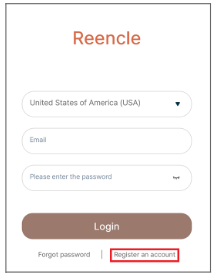
- Open the app and tap Register an Account.
- Fill in: Country, Email (tap Get Code for a verification code), Verification Code, Password, Confirm Password.
- Enter Name and Date of Birth (exact accuracy not required).
- Tap Confirm to complete registration, then log in.
3️⃣ Device Registration
⚠️ Device registration and operation require Wi-Fi (2.4GHz only).
※ Only one account can be actively connected per device — connecting a new account disconnects the previous one. We recommend sharing one account per household.
※ Switching to a new phone? Press Power + Purify on the unit to unpair, then reconnect.
Step-by-Step Pairing
1. Grant permissions — Allow both required permissions: local network access and location tracking.

2. Tap "+" next to Register Your Unit on the Home screen. On the Preparing to Connect screen, confirm your phone is on 2.4GHz Wi-Fi and Bluetooth is enabled.

3. Activate pairing mode on the unit:
- Ensure the power cord is plugged in and the unit is powered OFF.
- Press and hold Power + Dry simultaneously until the display changes.
- When a dotted line (⋯) appears, the unit is in pairing mode.
- ⚠️ Proceed immediately — pairing mode can time out.

4. Tap Find Device in the app right after the dotted line appears. Select your Gravity Pro from the list and tap Add.
5. Enter Wi-Fi credentials — SSID and password exactly as-is (⚠️ case, spaces, and punctuation matter). Tap Confirm and wait on the loading screen — don't close the app.

6. Complete registration by scanning the QR code on the bottom of the unit:
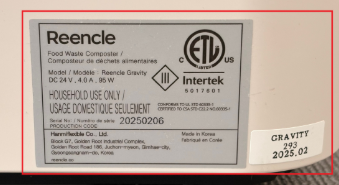
- Option A — Scan QR Code (recommended): Tap Scan QR Code → point camera at the unit's QR code → Model Name, Color, Serial Number, and Manufacturing Date auto-fill (Phone/Email optional) → Tap Done → Confirm → Go to My REENCLE.
- Option B — Manual entry: Tap "I can't find my QR code" → enter Serial Number, Manufacturing Date, Color (required; Phone/Email optional) → Tap Done → Confirm → Go to My REENCLE.
💡 Once connected, your Gravity Pro appears on the Home screen with Daily Input display and full remote control access.
🔧 Troubleshooting — Wi-Fi Connection
Work through in order:
| # | Check | Details |
|---|---|---|
| 1 | Wi-Fi network | Phone must be on 2.4GHz — not 5GHz |
| 2 | Bluetooth | Enable before pairing |
| 3 | Location permission | Required for pairing |
| 4 | VPN | Disable — it can block device discovery |
| 5 | Unit power state | Plugged in, powered OFF before pairing |
| 6 | Phone proximity | Move closer to the unit and retry |
| 7 | App/unit restart | Force-close/reopen app; unplug/replug unit |
| 8 | Data not syncing | Check internet → disable VPN → restart app → re-login if needed |
| 9 | Connecting a new phone | Log in with the same account and re-pair — previous connection auto-disconnects |
⚠️ Still stuck? Delete and reinstall the app, then retry pairing. If the issue persists, contact [email protected] with your unit's serial number
For further support: [email protected]